New in version 3.0

Your local weather.
Your kind of forecast.

Two focused Windows apps. Find your city and country automatically, explore real weather, and keep your forecast with you offline.

Automatic city & country Weather from Open-Meteo Saved forecasts offline
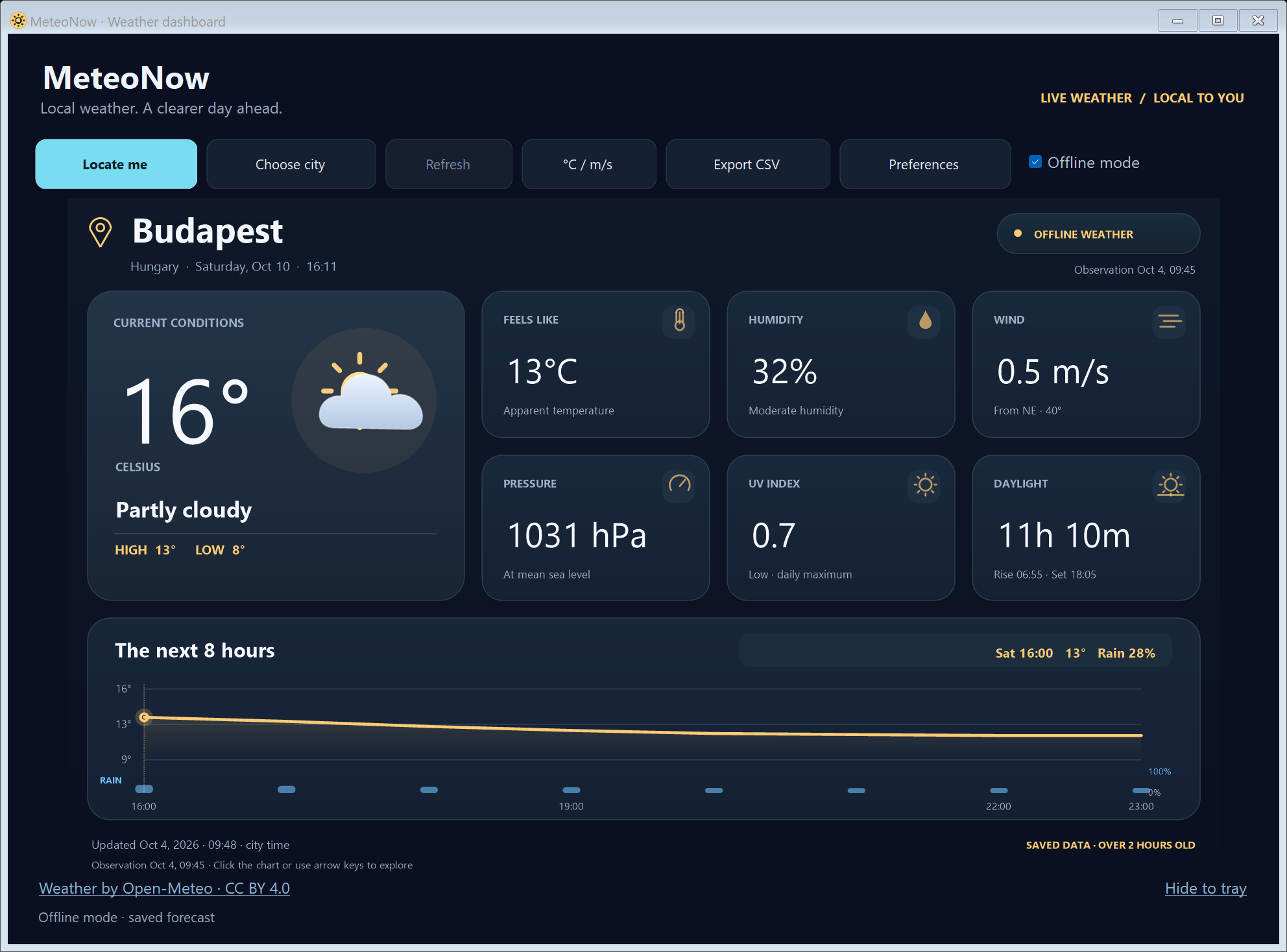
MeteoNow desktop interface with current conditions and an hourly forecast, showing saved weather
Your day, in detail

MeteoNow

A clear picture of the weather right now, with an interactive hourly forecast for the day ahead.

  • Temperature, feels like, humidity and wind
  • Explore hourly temperature and rain forecasts
  • Pressure, UV index, sunrise and sunset
Single EXE · Version 3.0116.2 MB
Download MeteoNow

Windows 10 / 11 · x64 · English · No installer needed
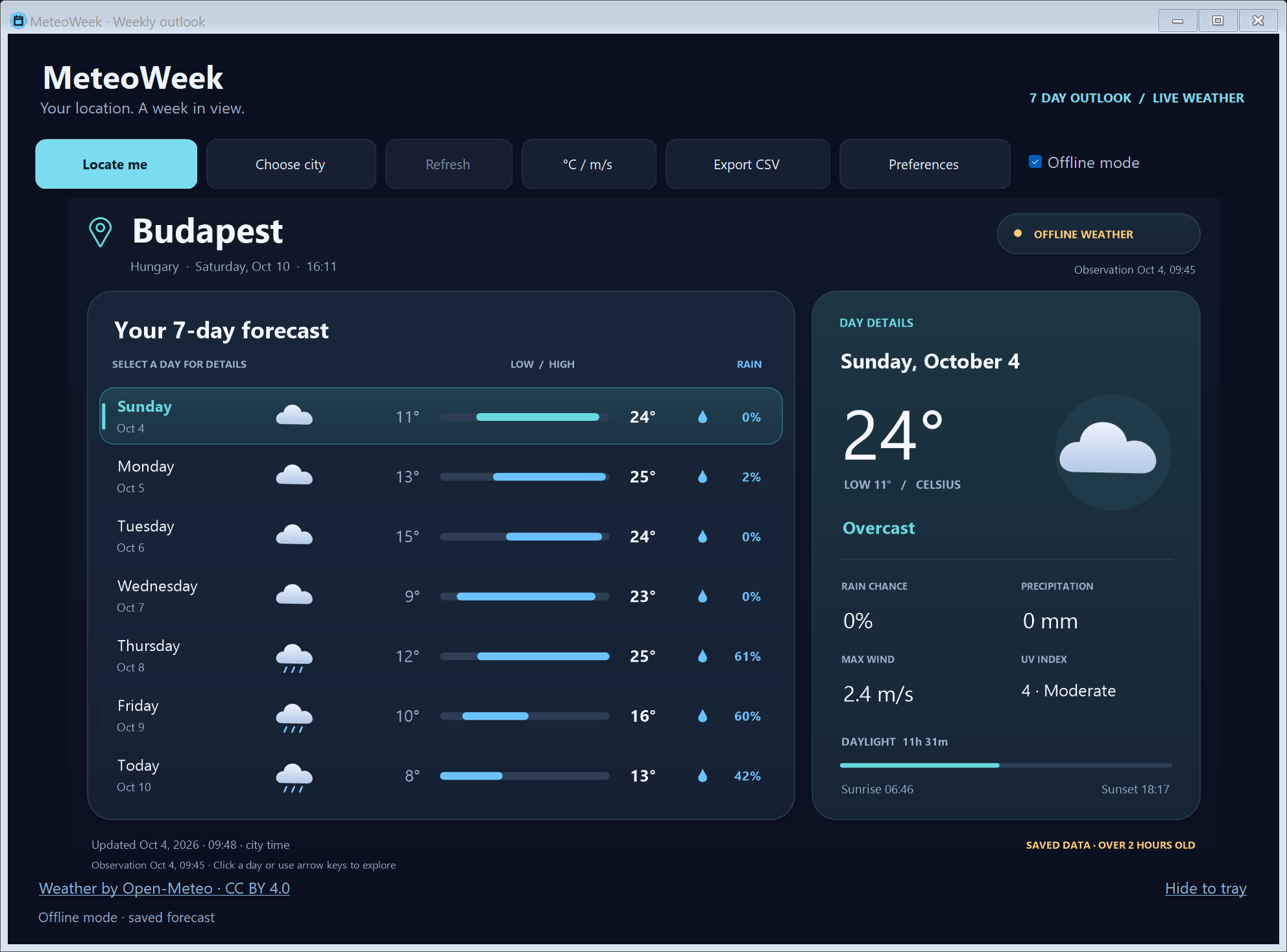
MeteoWeek desktop interface with a seven-day forecast and selected-day details, showing saved weather
Your week, at a glance

MeteoWeek

See the next seven days together, then choose a day for the details that help you plan.

  • Seven-day high and low temperature outlook
  • Daily rain, wind, UV index and daylight
  • Select days with your mouse or arrow keys
Single EXE · Version 3.0116.2 MB
Download MeteoWeek

Windows 10 / 11 · x64 · English · No installer needed

Actual app interfaces shown with saved forecasts. Weather values in these screenshots are not current.

Included in both:System tray access°C / °FCSV exportAutomatic refresh

Local weather, in a few clicks.

Download your preferred view and open the EXE. Everything you need is in one file.

01

Find your location

On first launch, the app looks up your approximate city and country. Use Locate me whenever you move.

02

Make it your forecast

Weather loads from Open-Meteo. Use Choose city to search another place or enter coordinates, then select your preferred units.

03

Keep it offline

Forecasts are saved automatically. Turn on Offline mode to view saved weather with its update time, even without internet.

Location is estimated from your public IP through GeoJS; Open-Meteo receives the coordinates to fetch weather. IP location can be approximate, especially with a VPN. You can choose your city manually.

Before you download

A few useful details about running the apps and keeping your forecast up to date.

Do I need an internet connection?

Internet is needed to detect your location and download fresh weather. After a forecast has been saved, offline mode displays that saved forecast. Offline values do not update and may no longer reflect current conditions.

How do I run the apps?

Download either EXE to your Windows 10 or 11 x64 computer and open it. Each app includes its runtime, so no separate .NET installation or additional files are needed. Settings and saved weather are kept on your computer.

What if the detected city is wrong?

Select Choose city and search for your location or enter its coordinates. IP-based location is approximate and may reflect your internet provider or VPN endpoint.

Where does the weather come from?

Both apps request current conditions, hourly forecasts and a seven-day outlook from Open-Meteo. The apps show the observation and saved-data times so you can see when your weather was updated.

Weather data: Open-Meteo · Location lookup: GeoJS · Weather data under CC BY 4.0